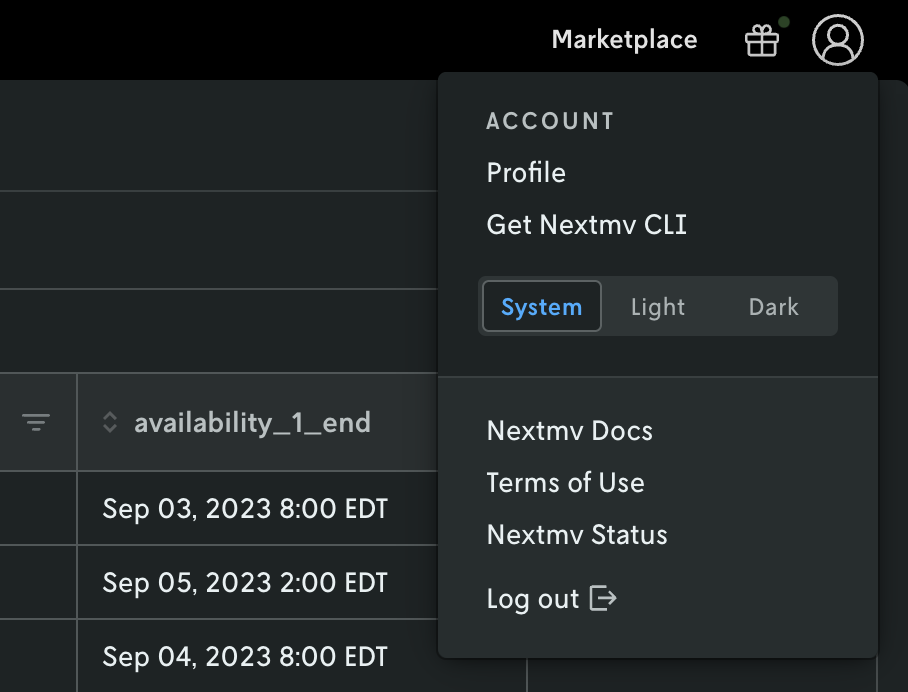
The Nextmv Console UI now has support for “dark mode.” If you have your system set to dark mode the UI will automatically recognize this and show a dark color theme. If your system is set to light mode then the UI remains the same.
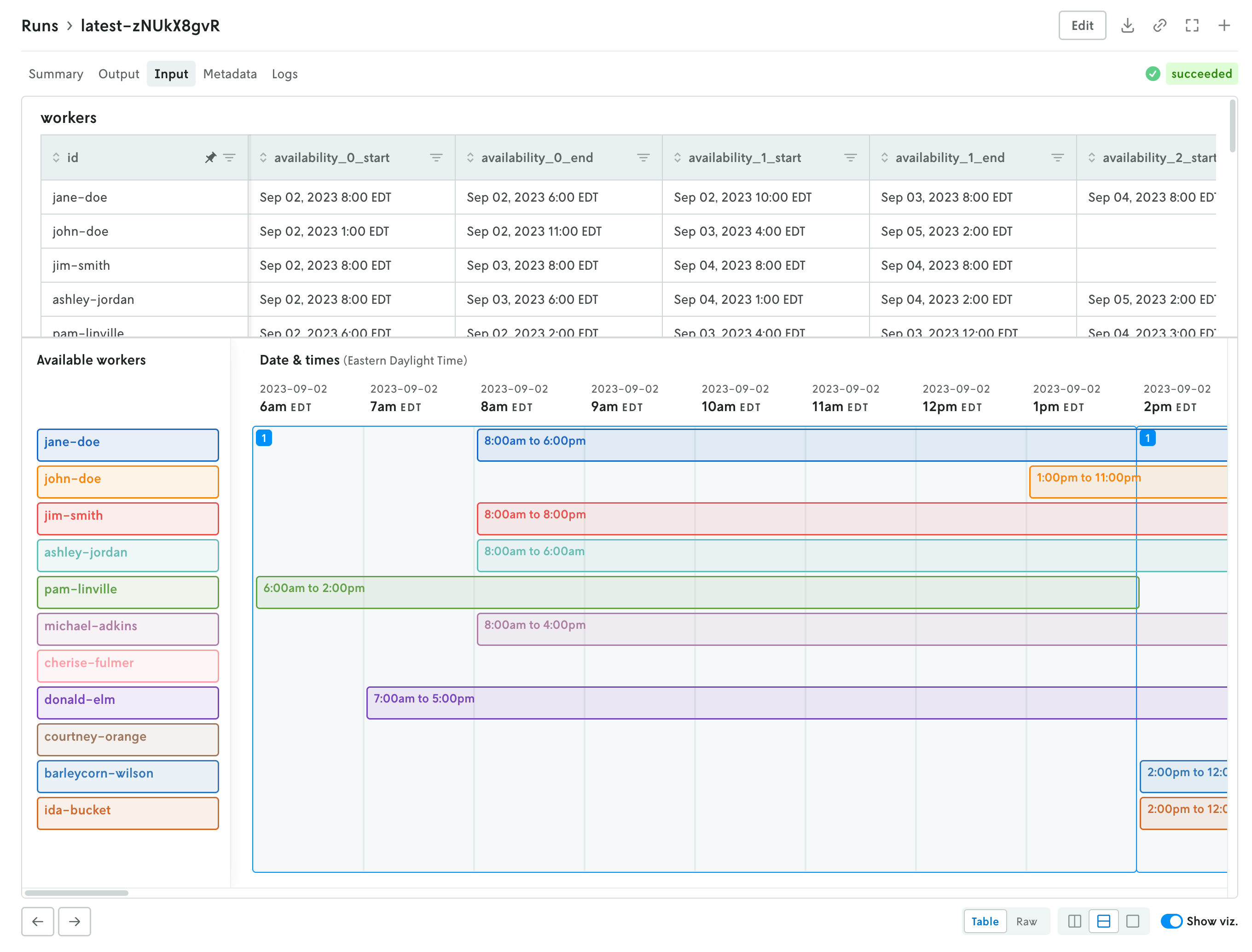 Screenshot of Nextmv Console in light mode.
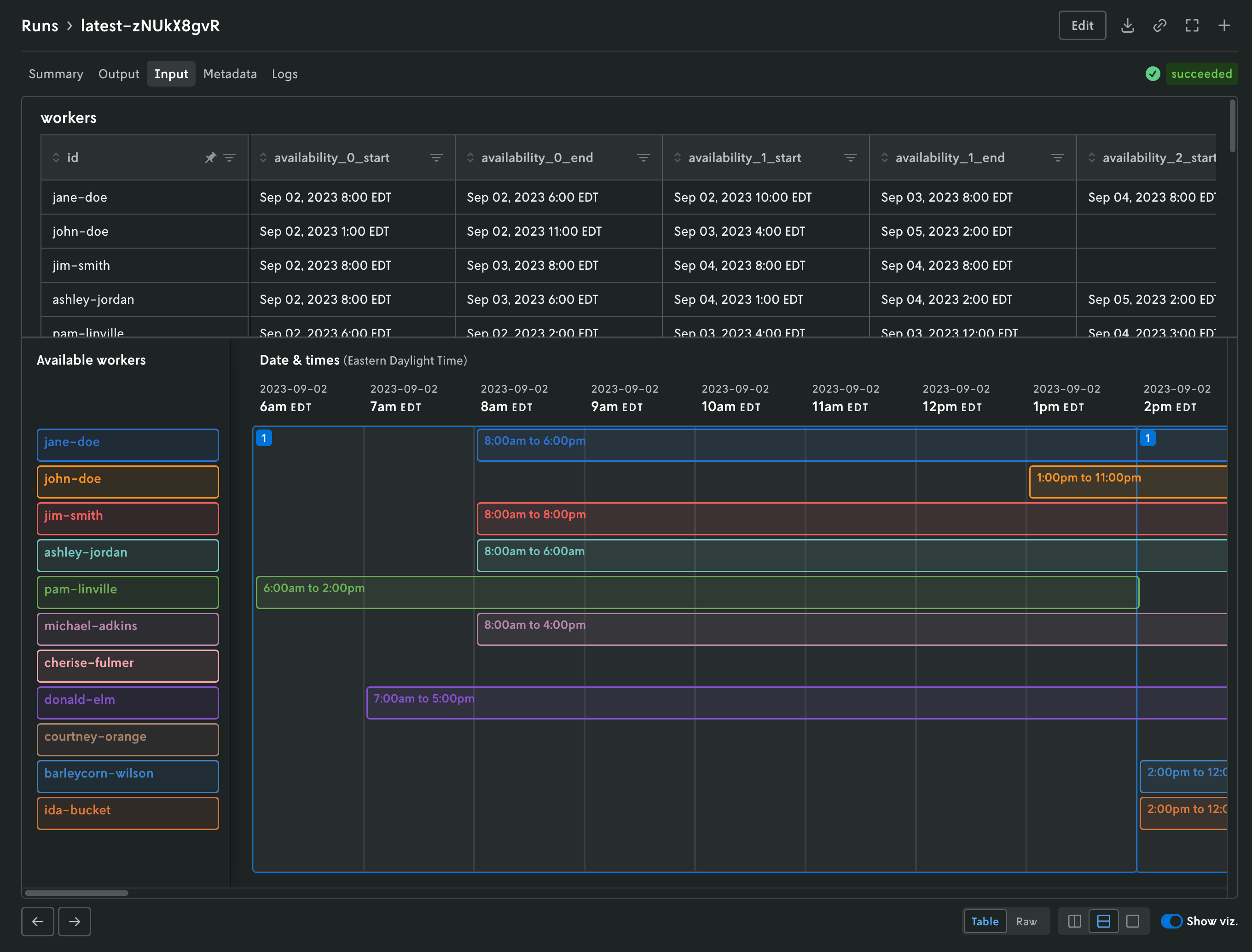 Screenshot of Nextmv Console in dark mode.
If you would like to set the Nextmv Console UI to use a different theme other than your system theme, you can adjust it by clicking on the profile link in the upper right and then selecting which theme you would like to use in the profile menu.