An application run in Nextmv Console has several default views into the data along with the option to add custom views as desired. However, there may be additional data you want to associate with a run that for whatever reason does not necessitate a custom view.
With the custom assets feature you can add this additional data to the output JSON as non-visual assets and Console will extract the data and present it as user-friendly list of file downloads.
Add downloadable assets
To associate a downloadable asset with a run, add a new top-level assets key to your output JSON. This assets block must be an array of objects with the following properties:
| Property | Type | Description |
|---|---|---|
name | string | Name for the downloadable asset |
content_type | json | Defines the content type of the downloadable asset. For now, only content type json is allowed. |
content | JSON | This property should contain the content for the downloadable asset. |
description | string | (Optional) Any additional information you would like to show to the end user. |
For a quick demo, add the example JSON below to your custom app's run output starting with the assets block (the items above this block are given for context):
Once you make a run with this new assets content, a new view should appear in the run details view in Nextmv Console with the label Assets. Click on this tab to view the available downloads for that run. You should see the three demo assets added with the JSON above.
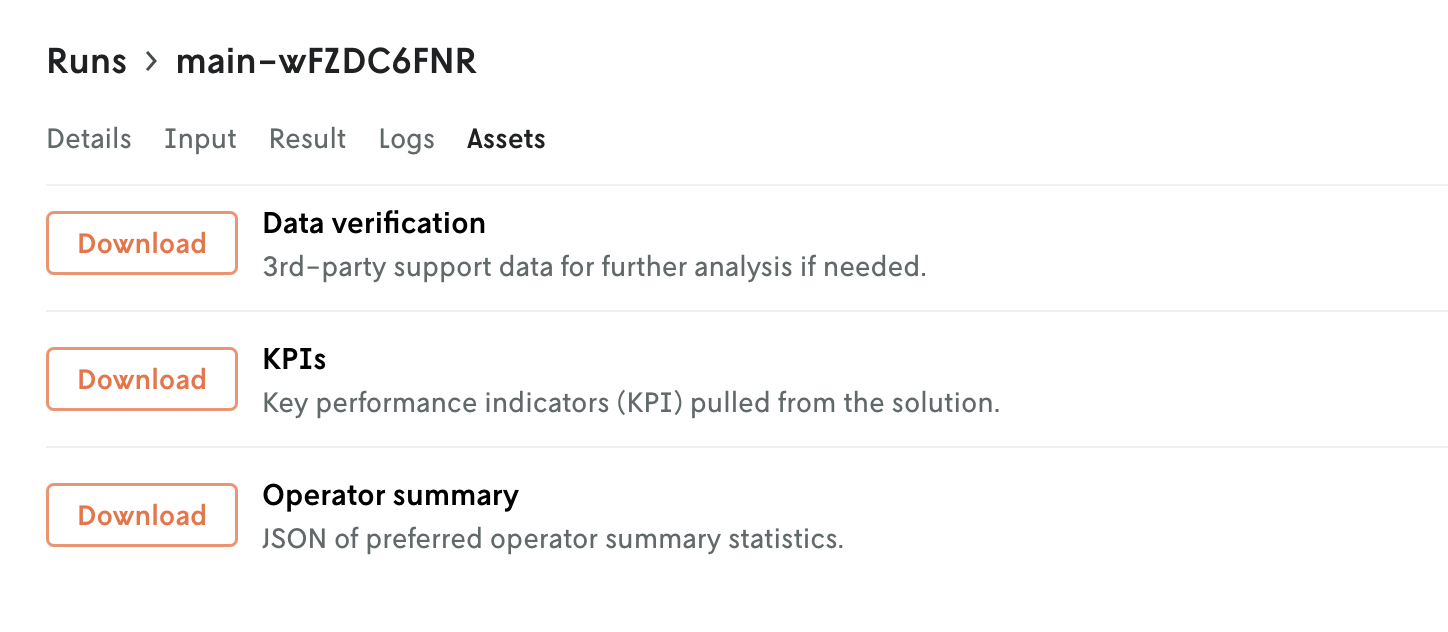
And if you download one of the files it will be a JSON file with the following contents:
Limits
Certain size limits apply to the individual custom assets and the number of custom assets you can include in a run. Furthermore, note that in case of JSON input format, the size of the custom assets counts against the overall output size limit for the run. See limits for more information.
Further
- Learn how to add custom visualizations to a run using the custom assets feature.