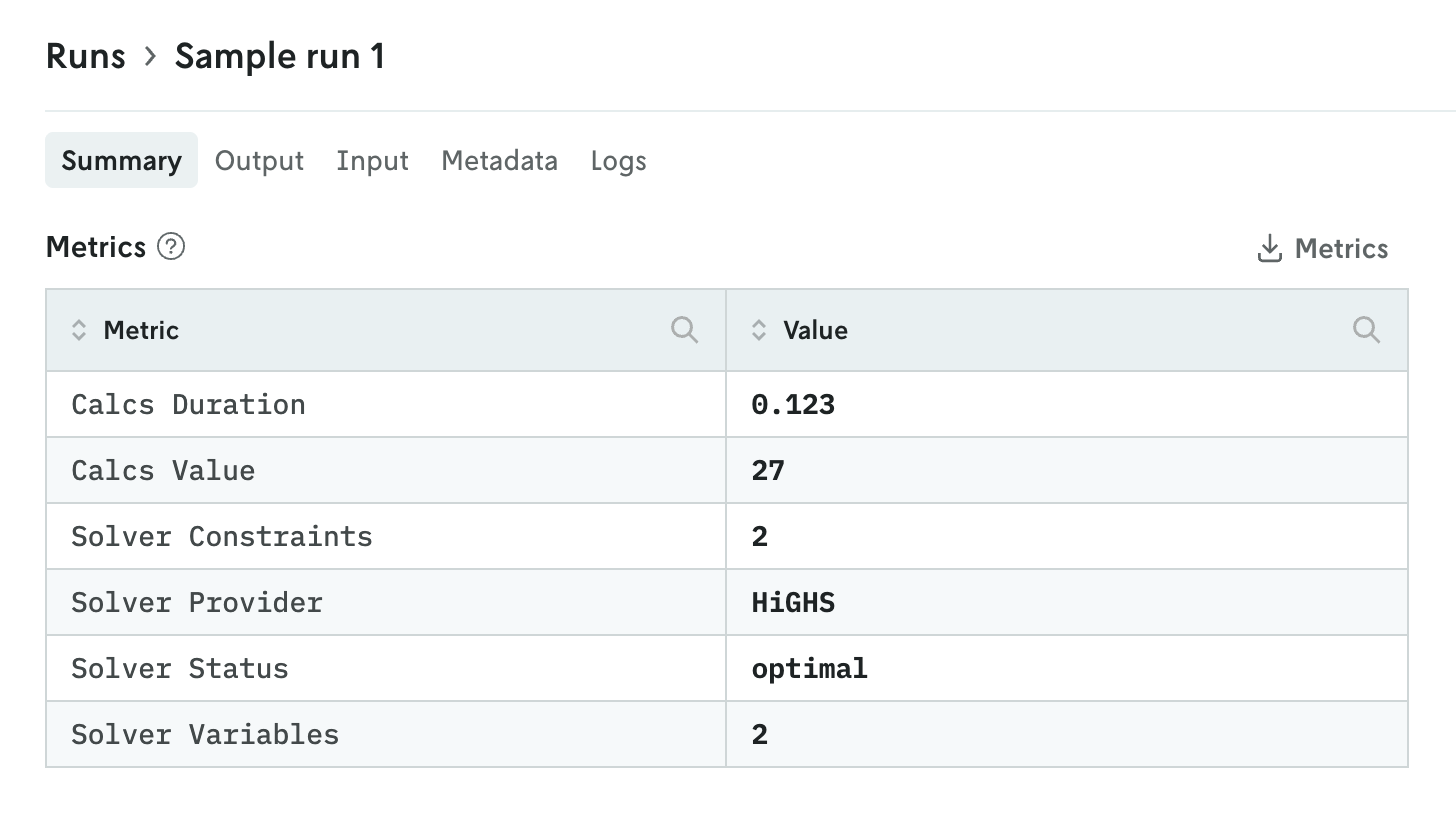
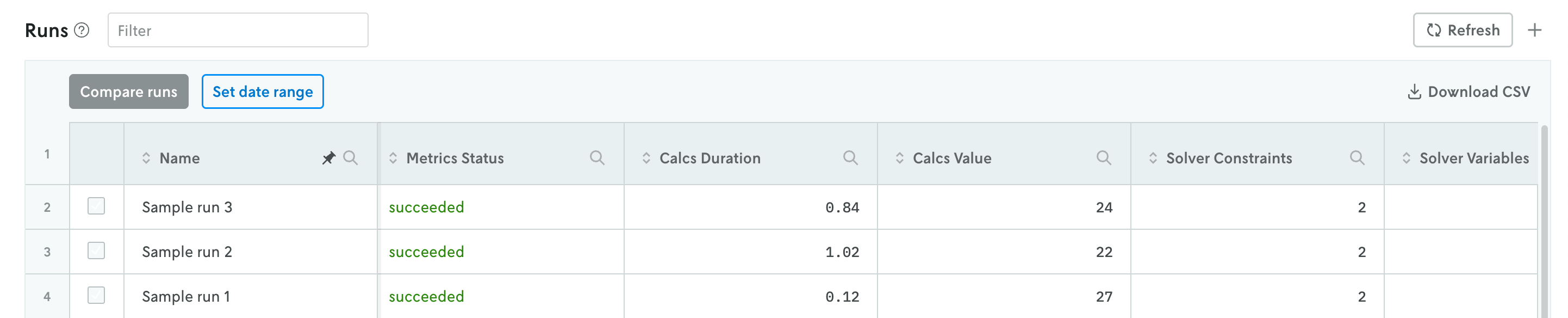
The metrics convention is a way to surface certain metrics in your system to Nextmv Platform. The custom metrics defined with the metrics convention are displayed on the run summary view and the run history table views, and can be used to compare runs and measure experiment outcomes.
If you're currently using statistics in your output and want to adopt the new flexible metrics functionality, please see the migration guidance at the bottom of this page.
Run format
Metrics can be defined for json format runs by adding them to your JSON output as a top-level metrics key. For multi-file runs, the metrics must be included in a single JSON file that is mapped in the app manifest’s output metrics path.
json
An example of how metrics would be defined for a json format run is given below.
Note the top-level metrics block alongside options, solutions, etc.
multi-file
An example of how the same metrics shown above would be defined for a multi-file format run is given below.
First, the file in which the metrics are stored would need to be defined in the app manifest:
Then, the metrics.json file would have the following contents:
Schema
The value of the top-level metrics property in json format runs, or the content of the defined metrics .json file in multi-file format runs, is a dictionary of any number of values and depth of hierarchy.
Other notes:
- All numerical values are interpreted as floating point (IEEE 754) values. This includes the special string values
"nan","inf","+inf"and"–inf"as JSON does not support these values natively. - The maximum size of the metrics object without unnecessary whitespace is 10kb.
Adding custom metrics
Custom metrics can be written to the output directly following the schema as outlined in the two sections above; or you can use special constructors that are available in the SDKs. See an example of how to add a custom metric to a custom app with the Python SDK.
How the metrics are used
If the run output conforms to the metrics convention, the system extracts the metrics and makes them available for further processing. For example the metrics are displayed as top-level values in the run history table, and are compared in the compare run views. The metrics can also be referenced and used for analysis with the experiment testing suite.
Example run summary view
Example run history view
Migrating to the new metrics functionality
For users who are using statistics in their run output currently, to opt into the new flexible metrics functionality, you must first replace the top-level statistics key in your run output with metrics. This ensures that the metrics data is being used rather than being overridden by statistics data from higher priority locations.
This migration requirement exists because the system follows a specific hierarchy when extracting data, prioritizing backwards compatibility while fully supporting the new flexible metrics functionality.
Once statistics has been replaced with metrics you can then decide if you want to keep the same hierarchal structure that was required under statistics or change it to fit your specific needs since metrics does not require any certain hierarchy. Read more below on the strategies for maintaining parity with your past runs and instances.
If you are migrating from statistics to metrics, you can still compare runs or use experiments with instances that previously used statistics by replicating the previous statistics schema under metrics. This ensures that comparison views will find the data at consistent paths regardless of whether runs use statistics or metrics.
Note that when using metrics, experiment indicators no longer include metadata.duration by default. If you need this indicator in your experiments, you can continue using statistics instead of migrating to metrics.
Data extraction priority order
The system follows this hierarchy when extracting statistics and metrics data from your run output:
Statistics: If a top-level
statisticskey is present injsonformat runs, or if statistics data exists in the defined statistics file formulti-fileformat runs, this data will be used to store statistics on the run metadata for analysis, experiments, and display in the run history table and compare run views.Statistics in last solution: To maintain backwards compatibility, if no top-level statistics are found, the system will look for a
statisticskey in the last solution generated.Metrics: Finally, if statistics are not found in either of the above locations, the system will store the information found in the
metricsfield.
This hierarchy ensures that existing applications continue to work while providing a clear migration path for applications that want to take advantage of the enhanced metrics capabilities.