Run Cloud applications
Info
Learn the concepts and fundamentals of runs in the Explanation page.
A run is a single execution of an app against an instance. It is the basic functionality encompassed of receiving an input, running the app, and returning an output.
This how-to guide explains how to interact with the actions under the nextmv
cloud run command tree. Go the reference section or use the
--help option to see all the available options for each command.
There are limits for submitting a new run and retrieving the results,
however, all the nextmv cloud run commands automatically take care of
handling large payloads for you.
Start and get a run
Start a new run using the nextmv cloud run create
command. json input data can be piped in through standard input
(stdin) or provided with the --input option. The command will return a
run_id that can be used to retrieve information about the run, including
metadata and results. For this example, assume the input data lives in a file
called input.json.
Retrieve the run information using the run_id with the nextmv cloud run
information command. The command includes important
metadata, such as the status.
⏳ Getting run information...
{
  "description": "",
  "id": "latest-3Z6olHEvg",
  "metadata": {
    "application_id": "uncanny-rodent",
    "application_instance_id": "latest",
    "application_version_id": "",
    "created_at": "2026-07-22T23:23:07Z",
    "duration": 7830.0,
    "error": "",
    "execution_class": "6c9500mb870s",
    "execution_duration": 6550.0,
    "format": {
      "input": {
        "type": "json"
      },
      "output": {
        "type": "json"
      }
    },
    "initiated_at": "2026-07-22T23:23:07.773641Z",
    "input_size": 61.0,
    "metrics": {
      "message": "Hello, world",
      "value": 1.23
    },
    "options": {
      "active_options": {
        "details": "true"
      },
      "options_summary": [
        {
          "name": "details",
          "source": "version",
          "value": "true"
        }
      ]
    },
    "output_size": 25099.0,
    "queuing_disabled": false,
    "queuing_priority": 6,
    "run_type": {
      "type": "standard",
      "definition_id": "",
      "reference_id": ""
    },
    "runtime": "python-3_11",
    "status_v2": "succeeded"
  },
  "name": "",
  "user_email": "sebastian@nextmv.io",
  "console_url": "https://cloud.nextmv.io/app/uncanny-rodent/run/latest-3Z6olHEvg?view=details"
}
Use the .metadata.status_v2 field to determine the status of the run. Please
read our documentation on run polling to learn how to wait for a run
to finish and retrieve the results.
Once the run completes, you can retrieve the results using the run_id with
the nextmv cloud run get command. The command will return
the output of the run, and the run information as well.
⏳ Getting run results...
💡 Removed assets from output for cleaner display, use --output to save the full output.
{
  "description": "",
  "id": "latest-3Z6olHEvg",
  "metadata": {
    "application_id": "uncanny-rodent",
    "application_instance_id": "latest",
    "application_version_id": "",
    "created_at": "2026-07-22T23:23:07Z",
    "duration": 7830.0,
    "error": "",
    "execution_class": "6c9500mb870s",
    "execution_duration": 6550.0,
    "format": {
      "input": {
        "type": "json"
      },
      "output": {
        "type": "json"
      }
    },
    "initiated_at": "2026-07-22T23:23:07.773641Z",
    "input_size": 61.0,
    "metrics": {
      "message": "Hello, world",
      "value": 1.23
    },
    "options": {
      "active_options": {
        "details": "true"
      },
      "options_summary": [
        {
          "name": "details",
          "source": "version",
          "value": "true"
        }
      ]
    },
    "output_size": 25099.0,
    "queuing_disabled": false,
    "queuing_priority": 6,
    "run_type": {
      "type": "standard",
      "definition_id": "",
      "reference_id": ""
    },
    "runtime": "python-3_11",
    "status_v2": "succeeded"
  },
  "name": "",
  "user_email": "sebastian@nextmv.io",
  "console_url": "https://cloud.nextmv.io/app/uncanny-rodent/run/latest-3Z6olHEvg?view=details",
  "output": {
    "options": {
      "details": true
    },
    "solution": {
      "message": "Hello, world"
    },
    "metrics": {
      "value": 1.23,
      "message": "Hello, world"
    }
  }
}
Instead of manually polling for a run to complete, you can use the
--wait option when creating a run and get the result as soon as the run is
done. The command automatically takes care of polling, retries, exponential
backoff with jitter and timeouts.
✅ Run latest-QX5MXNEvR created.
⏳ Getting run results...
💡 Removed assets from output for cleaner display, use --output to save the full output.
{
  "description": "",
  "id": "latest-QX5MXNEvR",
  "metadata": {
    "application_id": "uncanny-rodent",
    "application_instance_id": "latest",
    "application_version_id": "",
    "created_at": "2026-07-22T23:34:16Z",
    "duration": 6215.0,
    "error": "",
    "execution_class": "6c9500mb870s",
    "execution_duration": 5038.0,
    "format": {
      "input": {
        "type": "json"
      },
      "output": {
        "type": "json"
      }
    },
    "initiated_at": "2026-07-22T23:34:17.110904Z",
    "input_size": 61.0,
    "metrics": {
      "message": "Hello, world",
      "value": 1.23
    },
    "options": {
      "active_options": {
        "details": "true"
      },
      "options_summary": [
        {
          "name": "details",
          "source": "version",
          "value": "true"
        }
      ]
    },
    "output_size": 25099.0,
    "queuing_disabled": false,
    "queuing_priority": 6,
    "run_type": {
      "type": "standard",
      "definition_id": "",
      "reference_id": ""
    },
    "runtime": "python-3_11",
    "status_v2": "succeeded"
  },
  "name": "",
  "user_email": "sebastian@nextmv.io",
  "console_url": "https://cloud.nextmv.io/app/uncanny-rodent/run/latest-QX5MXNEvR?view=details",
  "output": {
    "options": {
      "details": true
    },
    "solution": {
      "message": "Hello, world"
    },
    "metrics": {
      "value": 1.23,
      "message": "Hello, world"
    }
  }
}
You can also use the --wait option with the nextmv cloud run get command to
wait for a run to complete when getting the results.
Run with options
If an application is designed to accept options, you can pass
them when starting runs using the --options flag. The format for the option
is key=value. You can pass multiple options by:
- Using the
--optionsflag multiple times, or - Using a comma-separated list of key-value pairs.
✅ Run latest-X8Tm3NEDR created.
⏳ Getting run results...
💡 Removed assets from output for cleaner display, use --output to save the full output.
{
  "description": "",
  "id": "latest-X8Tm3NEDR",
  "metadata": {
    "application_id": "uncanny-rodent",
    "application_instance_id": "latest",
    "application_version_id": "",
    "created_at": "2026-07-23T00:25:39Z",
    "duration": 7326.0,
    "error": "",
    "execution_class": "6c9500mb870s",
    "execution_duration": 6232.0,
    "format": {
      "input": {
        "type": "json"
      },
      "output": {
        "type": "json"
      }
    },
    "initiated_at": "2026-07-23T00:25:40.350642Z",
    "input_size": 61.0,
    "metrics": {
      "message": "Hello, world",
      "value": 1.23
    },
    "options": {
      "active_options": {
        "details": "false"
      },
      "options_summary": [
        {
          "name": "details",
          "source": "run",
          "value": "false"
        }
      ],
      "request_options": {
        "details": "false"
      }
    },
    "output_size": 25100.0,
    "queuing_disabled": false,
    "queuing_priority": 6,
    "run_type": {
      "type": "standard",
      "definition_id": "",
      "reference_id": ""
    },
    "runtime": "python-3_11",
    "status_v2": "succeeded"
  },
  "name": "",
  "user_email": "sebastian@nextmv.io",
  "console_url": "https://cloud.nextmv.io/app/uncanny-rodent/run/latest-X8Tm3NEDR?view=details",
  "output": {
    "options": {
      "details": false
    },
    "solution": {
      "message": "Hello, world"
    },
    "metrics": {
      "value": 1.23,
      "message": "Hello, world"
    }
  }
}
List runs
Use the nextmv cloud run list command to list all runs for
an application. The command will return a list of runs with information.
⏳ Listing app runs...
[
  {
    "id": "latest-X8Tm3NEDR",
    "user_email": "sebastian@nextmv.io",
    "name": "",
    "description": "",
    "created_at": "2026-07-23T00:25:39.867521Z",
    "application_id": "uncanny-rodent",
    "application_instance_id": "latest",
    "application_version_id": "",
    "run_type": {
      "type": "standard",
      "definition_id": "",
      "reference_id": ""
    },
    "execution_class": "6c9500mb870s",
    "runtime": "python-3_11",
    "status_v2": "succeeded",
    "queuing_priority": 6,
    "queuing_disabled": false,
    "options": {
      "details": "false"
    },
    "request_options": {
      "details": "false"
    },
    "options_summary": [
      {
        "name": "details",
        "value": "false",
        "source": "run"
      }
    ]
  },
  {
    "id": "latest-QX5MXNEvR",
    "user_email": "sebastian@nextmv.io",
    "name": "",
    "description": "",
    "created_at": "2026-07-22T23:34:16.697884Z",
    "application_id": "uncanny-rodent",
    "application_instance_id": "latest",
    "application_version_id": "",
    "run_type": {
      "type": "standard",
      "definition_id": "",
      "reference_id": ""
    },
    "execution_class": "6c9500mb870s",
    "runtime": "python-3_11",
    "status_v2": "succeeded",
    "queuing_priority": 6,
    "queuing_disabled": false,
    "options": {
      "details": "true"
    },
    "options_summary": [
      {
        "name": "details",
        "value": "true",
        "source": "version"
      }
    ]
  },
  {
    "id": "latest-3Z6olHEvg",
    "user_email": "sebastian@nextmv.io",
    "name": "",
    "description": "",
    "created_at": "2026-07-22T23:23:07.262146Z",
    "application_id": "uncanny-rodent",
    "application_instance_id": "latest",
    "application_version_id": "",
    "run_type": {
      "type": "standard",
      "definition_id": "",
      "reference_id": ""
    },
    "execution_class": "6c9500mb870s",
    "runtime": "python-3_11",
    "status_v2": "succeeded",
    "queuing_priority": 6,
    "queuing_disabled": false,
    "options": {
      "details": "true"
    },
    "options_summary": [
      {
        "name": "details",
        "value": "true",
        "source": "version"
      }
    ]
  }
]
Get run logs
The Nextmv platform stores logs for applications that correctly implement
logging. Each run that produces logs will have them available
for inspection. You can retrieve the logs for a run using the nextmv cloud
run logs command.
If an application is still in a running state, you can use the --tail
option to stream the logs as they are produced, albeit with some delay. The
command will continue to stream the logs until the run completes or is
canceled. The --tail option is also available for the nextmv cloud run
create command. This means that you can start a run, stream the logs as they
are produced, and get the results once the run completes.
✅ Run latest-Jyvw3NPvg created.
⏳ Tailing logs...
[2026-07-23 00:38:14.508942+00:00] Hello, world
You are 147.6 million km from the sun

⏳ Getting run results...
💡 Removed assets from output for cleaner display, use --output to save the full output.
{
  "description": "",
  "id": "latest-Jyvw3NPvg",
  "metadata": {
    "application_id": "uncanny-rodent",
    "application_instance_id": "latest",
    "application_version_id": "",
    "created_at": "2026-07-23T00:38:07Z",
    "duration": 7423.0,
    "error": "",
    "execution_class": "6c9500mb870s",
    "execution_duration": 6301.0,
    "format": {
      "input": {
        "type": "json"
      },
      "output": {
        "type": "json"
      }
    },
    "initiated_at": "2026-07-23T00:38:07.899985Z",
    "input_size": 61.0,
    "metrics": {
      "message": "Hello, world",
      "value": 1.23
    },
    "options": {
      "active_options": {
        "details": "true"
      },
      "options_summary": [
        {
          "name": "details",
          "source": "version",
          "value": "true"
        }
      ]
    },
    "output_size": 25099.0,
    "queuing_disabled": false,
    "queuing_priority": 6,
    "run_type": {
      "type": "standard",
      "definition_id": "",
      "reference_id": ""
    },
    "runtime": "python-3_11",
    "status_v2": "succeeded"
  },
  "name": "",
  "user_email": "sebastian@nextmv.io",
  "console_url": "https://cloud.nextmv.io/app/uncanny-rodent/run/latest-Jyvw3NPvg?view=details",
  "output": {
    "options": {
      "details": true
    },
    "solution": {
      "message": "Hello, world"
    },
    "metrics": {
      "value": 1.23,
      "message": "Hello, world"
    }
  }
}
Get the input of a run
As a DecisionOps platform, Nextmv is focused on reproducibility. This means
that you can always retrieve the input of a run using the nextmv cloud run
input command. The command will return the input of the run.
Cancel a run
You can cancel a run that is in these states using the nextmv
cloud run cancel command.
Run multi-file inputs
Up to now in this how-to guide, we have been using the json content
format for showing how to run applications. The Nextmv platform
also supports the multi-file content format for running
applications. When you run with the multi-file content format, input data is
provided from one or more files.
To a start a run with the multi-file content format, you can use the nextmv
cloud run create command with the --input option pointing
to a directory, instead of a file. The CLI will automatically tar and compress
the directory and use it as the input for the run. For this example, assume the
input data lives in a directory called inputs.
You can use all the same commands to get the run information, logs, and results as shown in previous sections of this how-to guide. The difference is that the output will be saved to a directory instead of being displayed in the terminal.
Consider the nextmv cloud run get command. You can get the
result of the run directly or customize the output location with the --output
option. The command will automatically untar and decompress the output to the
specified directory. For this example, assume the output data will be saved to
a directory called outputs. The information of the run will still be printed
to the terminal, but the output will be saved to the outputs.
⏳ Getting run results...
✅ Run outputs saved to outputs. Here is the metadata.
{
  "description": "",
  "id": "latest-DVnHODPvg",
  "metadata": {
    "application_id": "uncanny-rodent",
    "application_instance_id": "latest",
    "application_version_id": "",
    "created_at": "2026-07-23T03:58:28Z",
    "duration": 6926.0,
    "error": "",
    "execution_class": "6c9500mb870s",
    "execution_duration": 5553.0,
    "format": {
      "input": {
        "type": "multi-file"
      },
      "output": {
        "type": "multi-file"
      }
    },
    "initiated_at": "2026-07-23T03:58:29.025625Z",
    "input_size": 261.0,
    "metrics": {
      "metrics": {
        "message": "Hello, Patches",
        "value": 1.23
      }
    },
    "options": {
      "active_options": {
        "details": "true"
      },
      "options_summary": [
        {
          "name": "details",
          "source": "version",
          "value": "true"
        }
      ]
    },
    "output_size": 158.0,
    "queuing_disabled": false,
    "queuing_priority": 6,
    "run_type": {
      "type": "standard",
      "definition_id": "",
      "reference_id": ""
    },
    "runtime": "python-3_11",
    "status_v2": "succeeded"
  },
  "name": "",
  "user_email": "sebastian@nextmv.io",
  "console_url": "https://cloud.nextmv.io/app/uncanny-rodent/run/latest-DVnHODPvg?view=details"
}
Normally, you specify the content format of the application in the app.yaml
manifest, but you can also override it when starting a run with the
--content-format option.
Clone a run
Keeping with the theme of reproducibility, you can clone a run to effectively
recreate it with the same input and options. You can use the nextmv cloud run
clone command to clone a run. The command will return a new
run_id. Once you have the new run_id, you can perform all the same actions
that have been described in this how-to guide, such as getting the run
information, logs, and results.
Here is an example of cloning a run where the original run has a run_id:
latest-DVnHODPvg. We use the --wait option to poll and wait for the cloned
run to complete.
✅ Run latest-qvNrdDEDR cloned from original run latest-DVnHODPvg.
⏳ Getting run results...
✅ Run outputs saved to latest-qvNrdDEDR-output. Here is the metadata.
{
  "description": "Clone of latest-DVnHODPvg",
  "id": "latest-qvNrdDEDR",
  "metadata": {
    "application_id": "uncanny-rodent",
    "application_instance_id": "latest",
    "application_version_id": "",
    "created_at": "2026-07-23T04:09:27Z",
    "duration": 4738.0,
    "error": "",
    "execution_class": "6c9500mb870s",
    "execution_duration": 4311.0,
    "format": {
      "input": {
        "type": "multi-file"
      },
      "output": {
        "type": "multi-file"
      }
    },
    "initiated_at": "2026-07-23T04:09:27.523783Z",
    "input_size": 261.0,
    "metrics": {
      "metrics": {
        "message": "Hello, Patches",
        "value": 1.23
      }
    },
    "options": {
      "active_options": {
        "details": "true"
      },
      "options_summary": [
        {
          "name": "details",
          "source": "run",
          "value": "true"
        }
      ],
      "request_options": {
        "details": "true"
      }
    },
    "output_size": 158.0,
    "queuing_disabled": false,
    "queuing_priority": 6,
    "run_type": {
      "type": "standard",
      "definition_id": "",
      "reference_id": ""
    },
    "runtime": "python-3_11",
    "status_v2": "succeeded",
    "tracking": {
      "cloned_run_id": "latest-DVnHODPvg"
    }
  },
  "name": "latest-DVnHODPvg clone",
  "user_email": "sebastian@nextmv.io",
  "console_url": "https://cloud.nextmv.io/app/uncanny-rodent/run/latest-qvNrdDEDR?view=details"
}
Cloned runs have the run_id of the original run in the
.metadata.tracking.cloned_run_id field.
If you inspect the help menu of the nextmv cloud run clone command, you will
find striking similarities to the nextmv cloud run create
command. This is because you can overwrite as many aspects of the cloned run as
you want. The default behavior is to use the exact same input, options, and
configuration that the original run used. On top of this baseline, you may
choose to override whatever you may need, such as the input, instance, etc.
Consider this example of cloning a run where the original run has a run_id:
latest-DVnHODPvg. We are going to override the input, instance, and options.
✅ Run staging-x9lDKvEvg cloned from original run latest-DVnHODPvg.
⏳ Getting run results...
✅ Run outputs saved to staging-x9lDKvEvg-output. Here is the metadata.
{
  "description": "Clone of latest-DVnHODPvg",
  "id": "staging-x9lDKvEvg",
  "metadata": {
    "application_id": "uncanny-rodent",
    "application_instance_id": "staging",
    "application_version_id": "v100",
    "created_at": "2026-07-23T04:16:52Z",
    "duration": 5526.0,
    "error": "",
    "execution_class": "6c9500mb870s",
    "execution_duration": 4359.0,
    "format": {
      "input": {
        "type": "multi-file"
      },
      "output": {
        "type": "multi-file"
      }
    },
    "initiated_at": "2026-07-23T04:16:52.804656Z",
    "input_size": 261.0,
    "metrics": {
      "metrics": {
        "message": "Hello, Patches",
        "value": 1.23
      }
    },
    "options": {
      "active_options": {
        "details": "false"
      },
      "options_summary": [
        {
          "name": "details",
          "source": "run",
          "value": "false"
        }
      ],
      "request_options": {
        "details": "false"
      }
    },
    "output_size": 159.0,
    "queuing_disabled": false,
    "queuing_priority": 6,
    "run_type": {
      "type": "standard",
      "definition_id": "",
      "reference_id": ""
    },
    "runtime": "python-3_11",
    "status_v2": "succeeded",
    "tracking": {
      "cloned_run_id": "latest-DVnHODPvg"
    }
  },
  "name": "latest-DVnHODPvg clone",
  "user_email": "sebastian@nextmv.io",
  "console_url": "https://cloud.nextmv.io/app/uncanny-rodent/run/staging-x9lDKvEvg?view=details"
}
Compare runs
You can compare two or more runs to test out hypotheses around differences in
metrics, results, or to test the effect of stochasticity or policies in your
decision model. You can use the nextmv cloud run compare
command to perform a quick comparison of runs. Pass the run IDs to compare by
using the --run-ids option. You can pass multiple run IDs by:
- Using the
--run-idsflag multiple times, or - Using a comma-separated list of run IDs.
The output will show different tables comparing the runs and their characteristics.
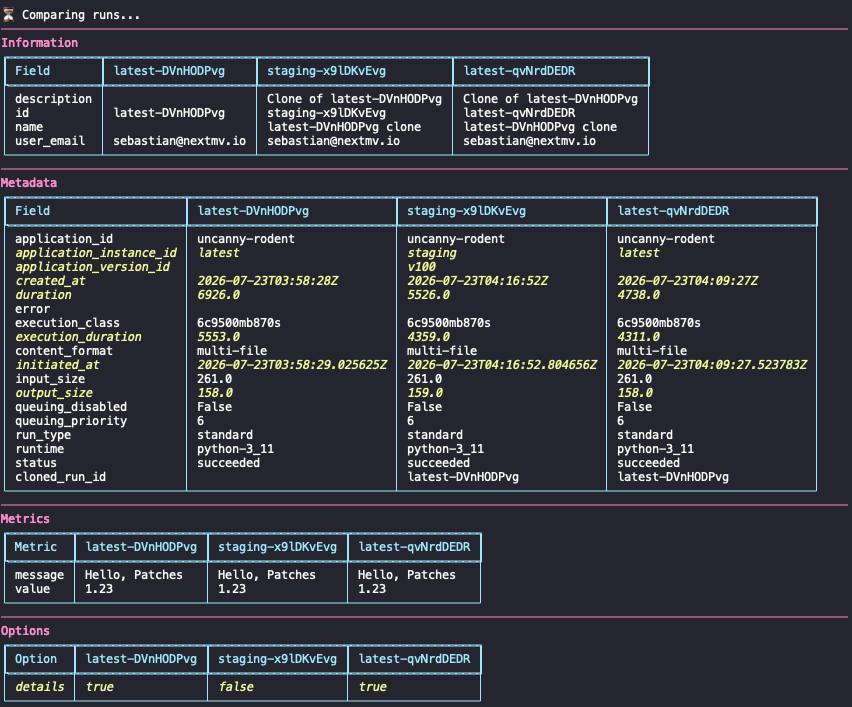
These tables have color highlighting to make it easier to identify the
differences between the attributes. The text in any given row will have a
different color if there are differences in the values of that row across the
runs being compared. For example, in the output above, values for the
application_instance_id and duration attributes are different across runs,
as you can see in the Metadata table.