Teams and roles
Teams and roles are managed using Nextmv Console. If you are on a paid plan, you will have the option to invite other people to your team. And if you are on a Premium plan, you have the option to designate roles for each team member as well. Visit the Nextmv Pricing page to see the full list of features for team and roles functionality.
When an account joins a team they have access to the full account features of that team, though certain roles restrict access to certain features. Read more below about how to manage teams and roles.
Teams
When you sign up for an account you are auto-provisioned a team of which you are the owner. This team will have an auto-generated name based on your account email (you can change this name at any time).
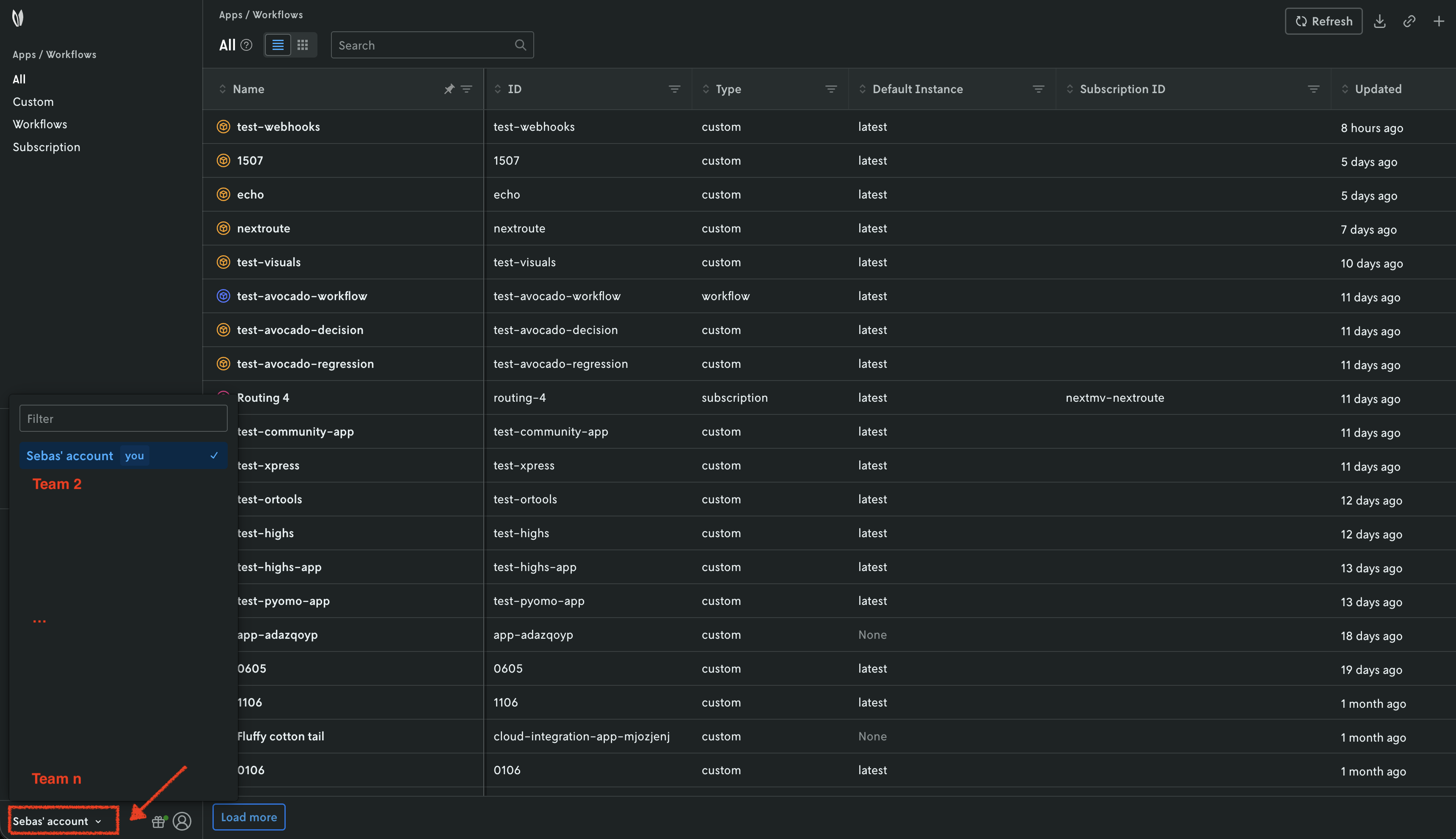
When you log in to Nextmv Console, you will see your team name at bottom left. You can click the team to activate the team switcher menu. If you haven’t joined any other teams, your team will be the only option in the menu.
This is how you switch teams in Nextmv Console. Clicking a team in the menu will switch to that team and then every thing you do in Nextmv Console will be in the context of that team.
Manage
You can change the name of a team by clicking on the Settings icon in the
main sidebar navigation; this takes you to the team Settings page where you
can then click the Edit button in the upper right to change the name of the
team. The team ID cannot be changed. The team name is for your reference and is
included in the invitation that appears in the invited user’s open invite list.
Invite others
To invite users to a team, from the Settings page navigate to the Members
page and then click the Invite new member button in the upper right.
A user can be invited to the team before they have a Nextmv account, just make sure it’s the same email they will use to sign up for a Nextmv account.
Tip
At this time, there are no email notifications for team invitations. However, when the invited users logs in to their Nextmv account they will see an invitation notification at the top of the page next to the team switcher.
Once the user accepts the invite they have access to the full account features of the team when they are working within the context of the team. In Nextmv Console, this is indicated by the team name in the upper left (i.e. switching to the team via the team switcher).
For actions outside of Nextmv Console (e.g. API access, Nextmv CLI), each user has the ability to create their own API keys for each team they belong to. And these API keys grant access to all plan features of that team.
So, there are two ways that team members access features of a plan:
- By using Console within the context of the team (as indicated by the team name in the header bar), and
- By using an API key generated from the team’s
API Keyspage (read more about managing API keys).
This provides a secure way to share paid account access across an organization.
Accepting invites
Pending invitations to other teams will appear as a notification next to the team drop down menu and in the dropdown menu itself as well. Clicking on the notification will take you to the Invites page where all pending invites are shown.
You can accept or decline invites to teams. If an invite is declined by mistake, the owner or admin of a team will need to resend the invite. Once you accept an invite you are immediately added to the team and have access to all the plan features of that team.
Leaving teams
To leave a team, in Nextmv Console switch to the team you want to leave with
the Team switcher, and then click the Settings icon in the main navigation.
This will take you to the team settings page which will have a Leave team
button. Click this button to remove yourself from the team.
Info
You can be re-invited to a team at any time. You cannot leave your own team.
Roles
When you create an account and are auto-provisioned a team, you are made
Owner of this team. This is a special role, of which there is only one per
team. The Owner role cannot be reassigned and the Owner of the team can not be
removed. The Owner role has access to all features and functionality of the
team, it is the most privileged role.
Tip
The Owner role is named root in direct requests to and responses from the Nextmv API.
When you invite other members to a team they will be assigned a role. If your
account is on the Innovator or Scale-up plan, all members of your team are
assigned the Admin role. If you need more restrictive access, contact
Nextmv about switching to our Premium plan.
There are four distinct roles for invited users to a team:
Viewer: is the most restricted role and can be considered read-only,Operator: is for running experiments and creating ad hoc app runs,Developer: is for creating, building, and deploying apps and versions,Admin: is for managing aspects of the team like inviting and removing members.
A summary of actions that each role can take are listed in the table below.
| Action | Viewer |
Operator |
Developer |
Admin |
|---|---|---|---|---|
| View team members | ✅ | ✅ | ✅ | ✅ |
| View team usage data | ✅ | ✅ | ✅ | ✅ |
| View Marketplace | ✅ | ✅ | ✅ | ✅ |
| View apps | ✅ | ✅ | ✅ | ✅ |
| View app runs, instances, & versions | ✅ | ✅ | ✅ | ✅ |
| View experiments | ✅ | ✅ | ✅ | ✅ |
| Create runs in Console | ✅ | ✅ | ✅ | |
| Create experiments in Console | ✅ | ✅ | ✅ | |
| Create/edit instances in Console | ✅ | ✅ | ✅ | |
| Create API keys | ✅ | ✅ | ||
| View API endpoints for an app | ✅ | ✅ | ||
| Create apps | ✅ | ✅ | ||
| Push code to an app | ✅ | ✅ | ||
| Create new versions | ✅ | ✅ | ||
| Use Nextmv CLI | ✅ | ✅ | ||
| Lock/unlock instances | ✅ | |||
| Add/remove team members | ✅ | |||
| Change team member roles | ✅ | |||
| Manage plan | Owner role only |